Posts

Setting up private registry for docker images

The registry is a stateless and highly scalable server-side open source application permissive under Apache license, which let you store your images privately and makes internal distribution and management easy. In case you don't want private registry docker hub is the best place to store your images. To configure own private registry follow below steps: 1. To start the registry container, which will be used as local registry on the docker host: [root@localhost ~]# docker run -d -p 5000:5000 --restart=always --name registry -v /local_registry/images:/var/lib/registry registry:2 Unable to find image 'registry:2' locally 2: Pulling from library/registry c87736221ed0: Pull complete 1cc8e0bb44df: Pull complete 54d33bcb37f5: Pull complete e8afc091c171: Pull complete b4541f6d3db6: Pull complete Digest: sha256:77a8fb00c00b99568772a70f0863f6192ff2635e4af4e22e4d9c622edeb5f2de Status: Downloaded newer image for registry:2 97f0845f8c3a0064ef0144aba57610e4c4f3d79947ee...
Unable to pull images from docker hub in your environment ?

A couple of days back I faced an issue where I was able to pull images from docker hub on my laptop when connecting from my home and same was failing when connecting in office. I tried setting a proxy on my RHEL OS with "export" env setting but still, it didn't work. Then after googling figured out the exact root cause. Setting up proxy on OS environment (using export with RHEL) is not enough in case of docker, here you need to set proxy on one more level i.e. on docker settings. To do this follow the below steps: Create a new file "http-proxy.conf" if not exists in the below folder with shown contents: [root@localhost ~]# vi /etc/systemd/system/docker.service.d/http-proxy.conf [Service] Environment="HTTP_PROXY=http://proxy1.localnet.net:8080/" Environment="HTTPS_PROXY=http://proxy1.localnet.net:8080/" save and quit. Restart docker service: [root@localhost ~]# systemctl daemon-reload [root@localhost ~]# systemctl restart do...

Preparing RHEL 7.5 base image for docker container from scratch

Whenever we start working with a container, to start you need a base image for any specific Operating system as per your requirement. You can get base images for many OS distributions except RHEL OS as it needs licensing. So in case, you want to prepare a base image of RHEL operating system you can follow below steps which are pretty straight forward:  Prerequisites: Mount RHEL 7.5 ISO on /mnt and create a .repo file: [root@localhost yum.repos.d]# cat /etc/yum.repos.d/local.repo [localrepo] name=Local Repository baseurl=file:///mnt gpgcheck=0 enabled=1 OPTIONAL: HTTP/HTTPS repository is needed when you need to install any packages inside a container, or while preparing containers. [root@localhost yum.repos.d]# cat httplocal.repo [rhel-core] name=RHEL 7.5 Core baseurl=http://web1.repo.local/linux/RedHat/7.5Server/en/os/x86_64/ gpgcheck=0 enabled=1 OPTIONAL: Set proxy if needed in your network. Steps to create a base image: ...

How to disable system reboot using “Alt+Ctrl+Del” combination in CentOS/RHEL 7

In CentOS/RHEL operating systems, pressing "Ctrl + Alt + Del" key combination by default initiates a system reboot without any user confirmation. In case if you want to disable this behavior you can run below command: [root@localhost ~]# systemctl mask ctrl-alt-del.target OR [root@localhost ~]# ln -sf /dev/null /etc/systemd/system/ctrl-alt-del.target Now you can try pressing "Ctrl + Alt + Del" key combination and you will see instead of rebooting system it will log below messages to log file " /var/log/messages ": May 18 13:16:07 localhost systemd: Received SIGINT. May 18 13:16:07 localhost systemd: Failed to enqueue ctrl-alt-del.target job: Unit is masked. To enable "Ctrl + Alt + Del" key combination for system reboot: [root@localhost ~]#  systemctl unmask ctrl-alt-del.target

How to monitor disk performance on RHEL or CentOS 7 ?

Image
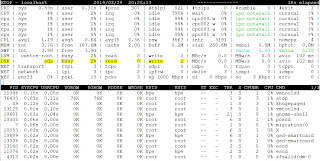
How to monitor disk performance on RHEL or CentOS 7 ? iotop : Watches I/O usage information output by the Linux kernel (requires 2.6.20 or later) and displays a table of current I/O usage by processes or threads on the system. At least the CONFIG_TASK_DELAY_ACCT, CONFIG_TASK_IO_ACCOUNTING, CONFIG_TASKSTATS and CONFIG_VM_EVENT_COUNTERS options need to be enabled in your Linux kernel build configuration. iotop displays columns for the I/O bandwidth read and written by each process/thread during the sampling period. It also displays the percentage of time the thread/process spent while swapping in and while waiting on I/O. For each process, its I/O priority (class/level) is shown. [root@localhost ~]# iotop Total DISK READ :       0.00 B/s | Total DISK WRITE :       0.00 B/s Actual DISK READ:       0.00 B/s | Actual DISK WRITE:       0.00 B/s    TID  PRIO  USER  ...

How to add more swap space by adding new swap partition in RHEL or CentOS 7 ?

How to add more swap space by adding new swap partition in RHEL or CentOS 7 What is swap? Swap space on a disk is used when the amount of physical RAM is full in the Linux system. When the system runs out of RAM, inactive pages are moved from the RAM to the swap space. Swap space can be either a dedicated swap partition or a swap file. So here we will see how you can add more swap space as a swap file. In this article we will see how we can add more swap space using a new swap partition. Steps : Let's check how much swap is available on the system currently: [root@localhost ~]# swapon --show [root@localhost ~]# free -h I have a new 10GB disk named "/dev/sdb" and i want to use it as a swap space. [root@localhost ~]# fdisk -l Disk /dev/sdb: 10.7 GB, 10737418240 bytes, 20971520 sectors Units = sectors of 1 * 512 = 512 bytes Sector size (logical/physical): 512 bytes / 512 bytes I/O size (minimum/optimal): 512 bytes / 512 bytes Step 1 : Create a...

How to add more swap space as a swapfile on RHEL or CentOS 7 ?

How to add more swap space as a swapfile on RHEL or CentOS 7 What is swap? Swap space on a disk is used when the amount of physical RAM is full in the Linux system. When the system runs out of RAM, inactive pages are moved from the RAM to the swap space. Swap space can be either a dedicated swap partition or a swap file. So here we will see how you can add more swap space as a swap file. In this article we will see how we can add more swap space using a swapfile. Steps : Let's check how much swap is available on the system currently: [root@localhost ~]# swapon --show NAME      TYPE      SIZE USED PRIO /dev/dm-1 partition 3.9G    0B   -2 [root@localhost ~]# free -h               total        used        free      shared  buff/cache   available Mem:           3.7G      ...